How to Use Curves on a Mac to Fix Flat, Dull Photos
Flat photos waste half their tonal range. Set the black and white points in Curves, add a gentle S, and stop before the sky starts to band.
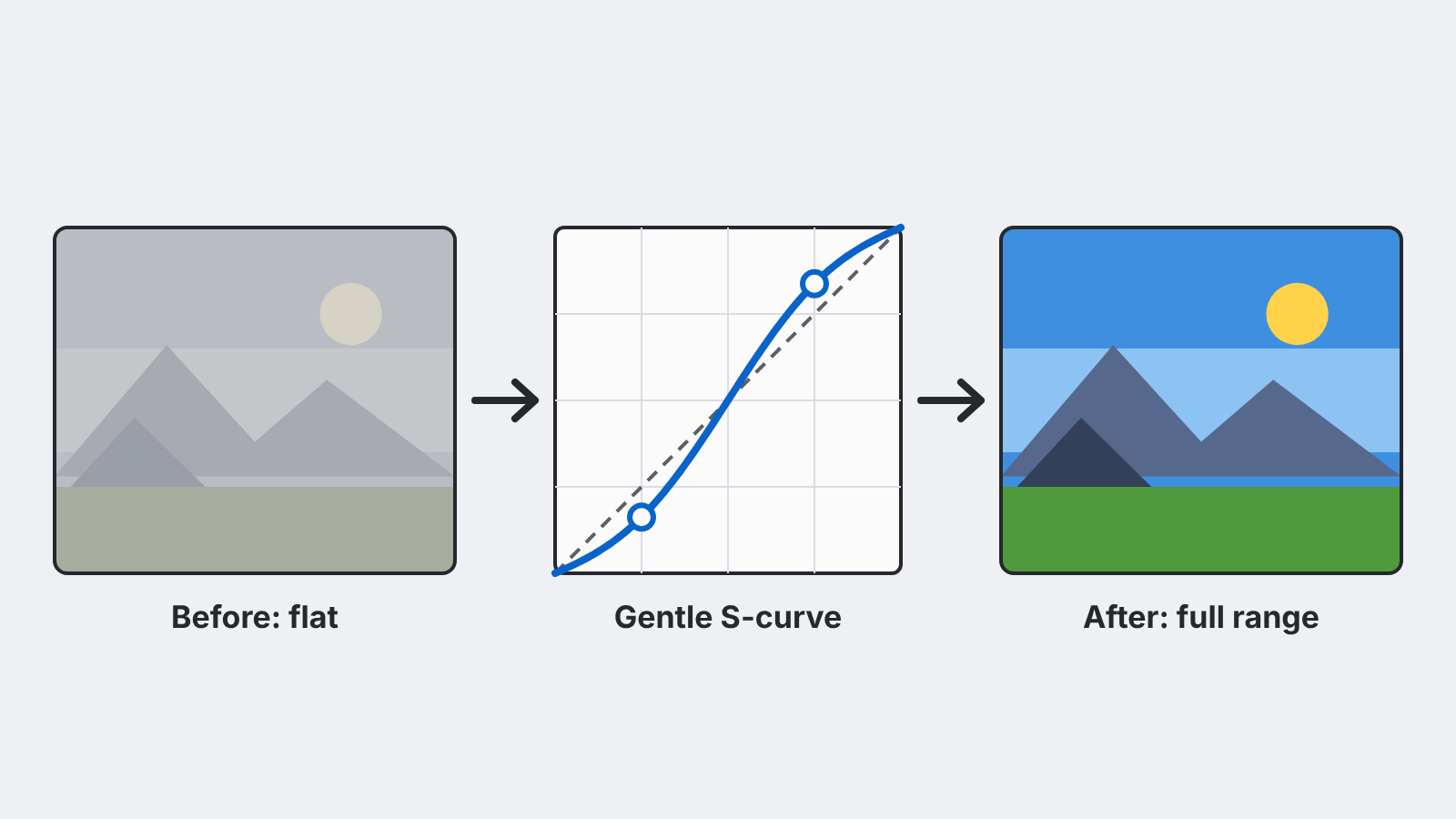
A flat photo is one where the darkest parts aren't dark and the brightest parts aren't bright. Everything sits in a grey middle band. The fix is a Curves adjustment: pull the ends of the curve in to where your image's tones actually start and stop, then bend the line into a gentle S. That takes about a minute, and it works in any Mac photo editor that has Curves, including Fotofied.
Below is what each part of the curve does, the order to work in, and the two mistakes that turn a good correction into a crunchy, posterised mess.
What the Curves graph is showing you
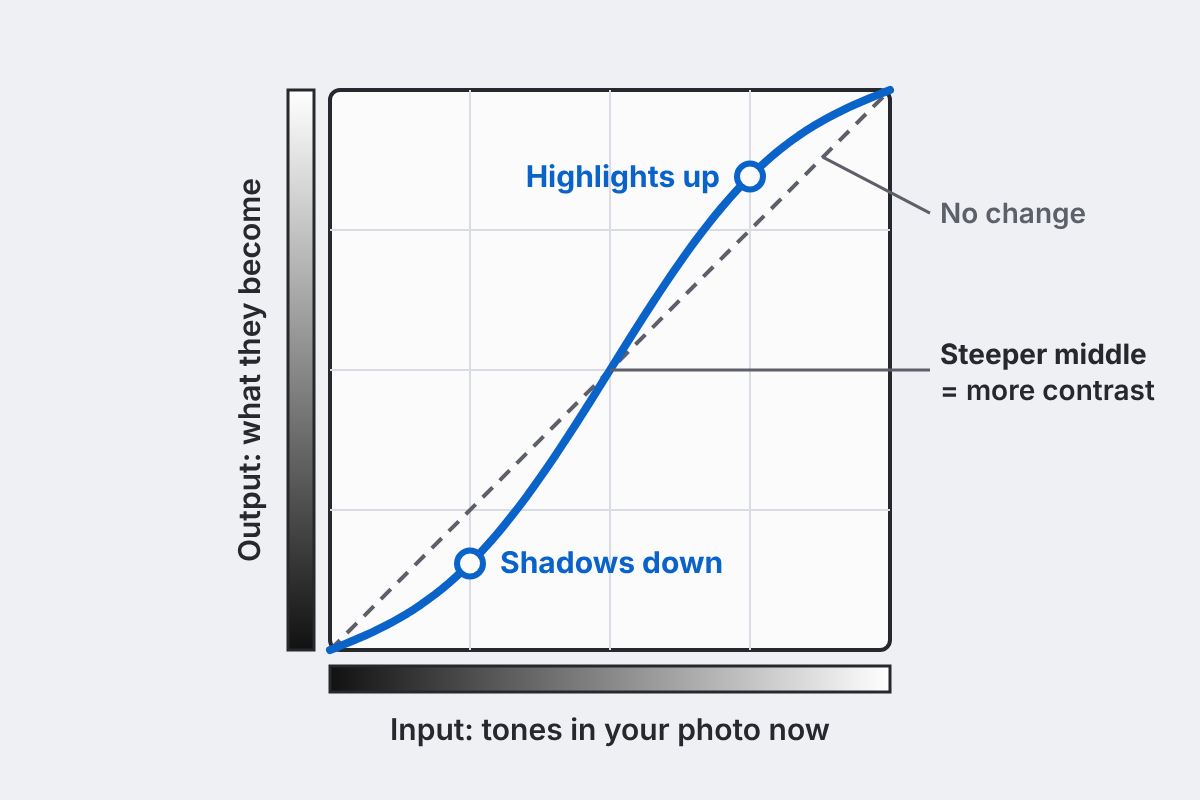
The Curves graph is a map from old tones to new ones. The horizontal axis is the input: the tones in your photo now, from black on the left to white on the right. The vertical axis is the output: what those tones become.
When you open Curves, the line runs straight from bottom-left to top-right. Every input maps to the same output, so nothing changes. Every edit you make is a bend in that line:
- Drag a point up and those tones get brighter.
- Drag a point down and they get darker.
- Where the line gets steeper, the tones in that range spread apart and you get more contrast.
- Where it gets flatter, tones squeeze together and contrast drops.
That last pair is the whole trick. Curves can't add contrast everywhere at once. It moves contrast from one range of tones to another. An S-curve takes a little contrast away from the deepest shadows and brightest highlights and spends it on the midtones, where faces, skies and most of the detail you care about live.
Step 1: Read the histogram first
Most Curves panels draw the image's histogram behind the line. It shows how many pixels sit at each tone, dark on the left, light on the right.
On a flat photo the histogram is a hump in the middle with empty space at both ends. That empty space is tonal range you're paying for and not using. Haze, a dull overcast day, a scan of an old print and a RAW file before any processing all tend to look like this.
If the histogram already touches both edges, the photo isn't flat in the technical sense. Skip to Step 3 and use a smaller S.
Step 2: Move the black and white points in
Drag the bottom-left end of the line to the right, until it sits under the point where the histogram starts. Then drag the top-right end to the left, to where the histogram ends.
You've just told the editor: "this tone is my new black, and that one is my new white." Everything in between stretches to fill the full range. It's the same thing the Levels sliders do, which is why many people set the end points in Levels and do the shaping in Curves. Either way works.
Stop at the edge of the hump.
If you drag past it, the pixels beyond your new end point all become pure black or pure white, and the detail in them is gone. A few specular highlights going white is fine. A sky turning into a blank white patch is not.
Step 3: Add a gentle S
Click on the line about a quarter of the way in from the left and pull it down a little. Click about a quarter of the way in from the right and pull it up by a similar amount.
Small moves.
On most photos the points travel a few percent of the graph's height, not a third of it. Toggle the adjustment off and on to compare. You want the "on" version to look like the scene looked to you, not like a filter.
If the photo now looks too dark or too bright overall, add a third point in the middle and nudge it up or down. That shifts overall brightness without undoing the contrast you just added.
Step 4: Watch for the two common mistakes
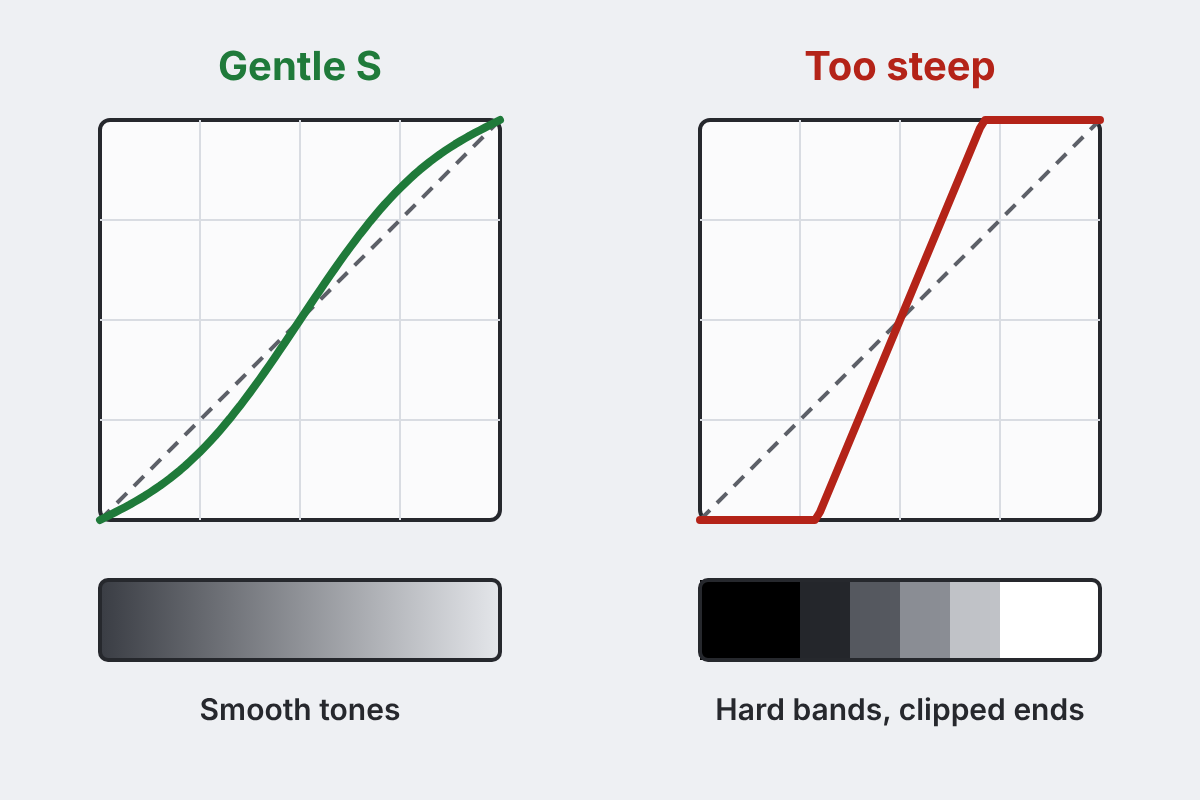
Too steep an S. Contrast is the slope of the curve. Push the points far enough and the middle gets so steep that neighbouring tones jump apart. Smooth gradients, like a clear sky or a studio backdrop, break into visible bands. The ends flatten out at the same time, so shadows block up into solid black and highlights wash to white.
Colours getting louder than you wanted. A curve on the combined RGB channel raises contrast in each colour channel, and more contrast between channels reads as more saturation. A strong S can turn skin orange and skies electric. Use a softer curve, or lower saturation a touch afterwards.
Step 5: Fix a colour cast with a single channel
Curves isn't only for brightness. Most editors let you switch the curve from RGB to the Red, Green or Blue channel on its own. Each channel controls a pair of opposite colours:
| Channel | Raise the curve | Lower the curve |
|---|---|---|
| Red | more red | more cyan |
| Green | more green | more magenta |
| Blue | more blue | more yellow |
So a photo shot under warm indoor light, with an orange-yellow cast, usually wants the Blue curve raised a little in the middle. A shot in shade with a blue cast wants the Blue curve lowered. Find something in the frame that should be neutral (a white wall, grey pavement, a white shirt) and adjust until it looks neutral. Small moves again.
Step 6: Edit in a format that can take it
Curves stretches tones. Stretch an 8-bit JPEG hard and the gaps between its 256 levels per channel show up as banding, the same failure as the too-steep S. A RAW file, or a 16-bit TIFF, has far more levels per channel and takes strong curves much better.
If you have the RAW, edit that.
If you only have the JPEG, keep the curve gentle. When you're done, export a copy for sharing and keep the master as a TIFF so you can come back to it. If your editor puts adjustments on layers, keep the Curves on its own layer: you can lower its opacity later if it looks strong on a different screen.
A quick routine for every flat photo
- Open Curves and look at the histogram.
- Drag the black and white end points in to the edges of the hump.
- Pull the shadow quarter down slightly, push the highlight quarter up slightly.
- Nudge the midpoint to set overall brightness.
- Check skies and smooth areas at 100% for banding.
- If there's a cast, fix it on one colour channel.
That's the whole job for most photos.
In Fotofied, Curves sits next to Levels, layers and masks and runs on your Mac, so you can do all of this on the original file without uploading it anywhere.
